This note is accessible to anyone with the link. If the link is shared or stored in browser history, others may be able to view and edit it. Protect with Password
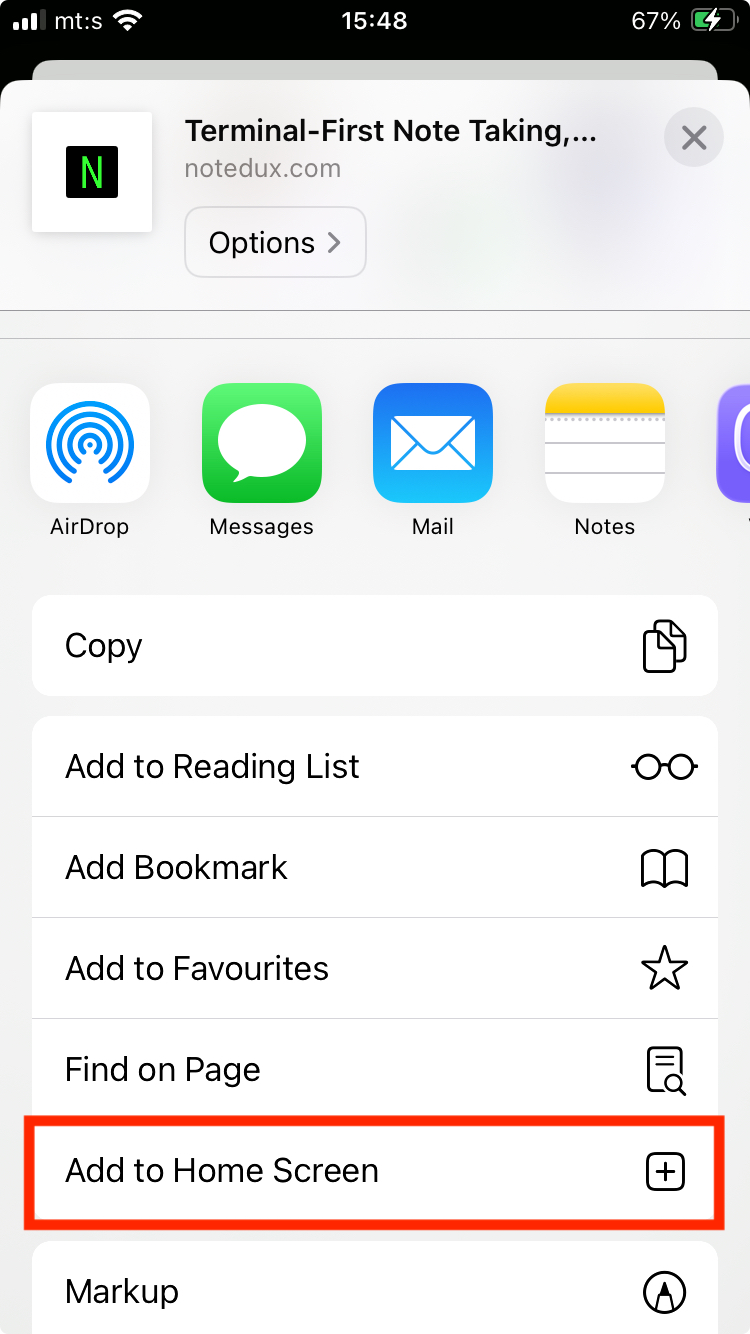
To access your note easily later, please create a shortcut on your phone.
  1. Tap the Share button at the bottom of the screen.
  2. Scroll down through the options.
  3. Tap Add to Home Screen.
  4. Tap Add.
How to add Notedux to iPhone Home Screen
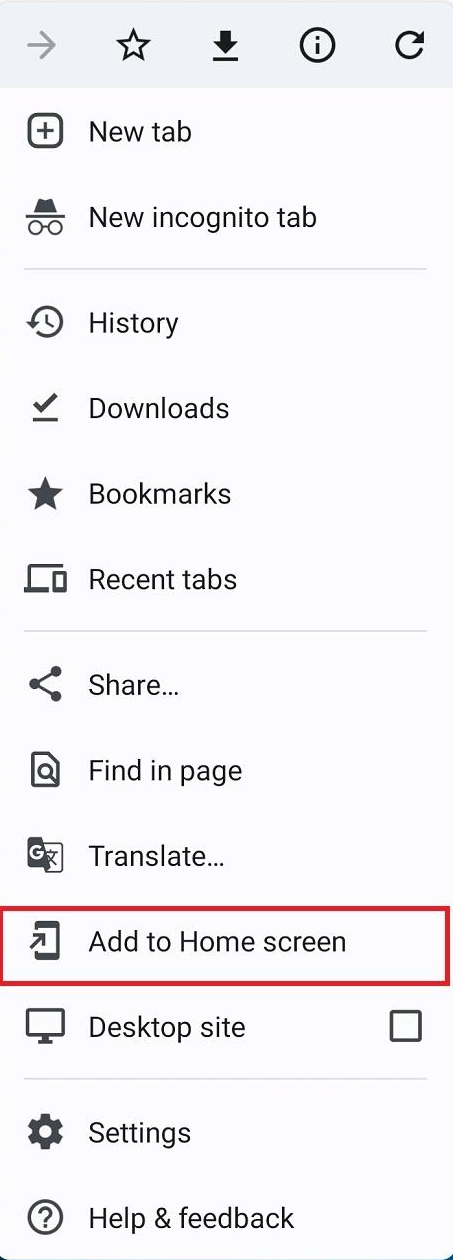
To access your note easily later, please create a shortcut on your phone.
  1. Tap the three dots (⋮) in the top-right corner.
  2. Select Add to Home screen.
  3. Tap Add.
How to add Notedux to phone Home Screen
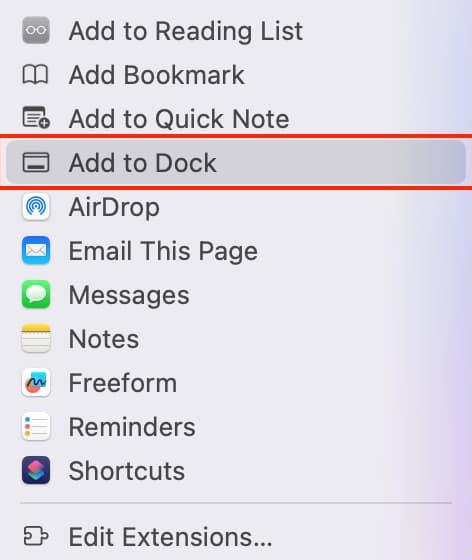
To access your note easily later, please create a shortcut on your desktop.
  1. Click the Share button in the Safari toolbar.
  2. Select Add to Dock.
  3. Click Add.
  4. If you don't see Add to Dock option, you're using the old version. In that case, first click the URL in the address bar, then click and drag it to the Dock.
How to add Notedux shortcut to desktop
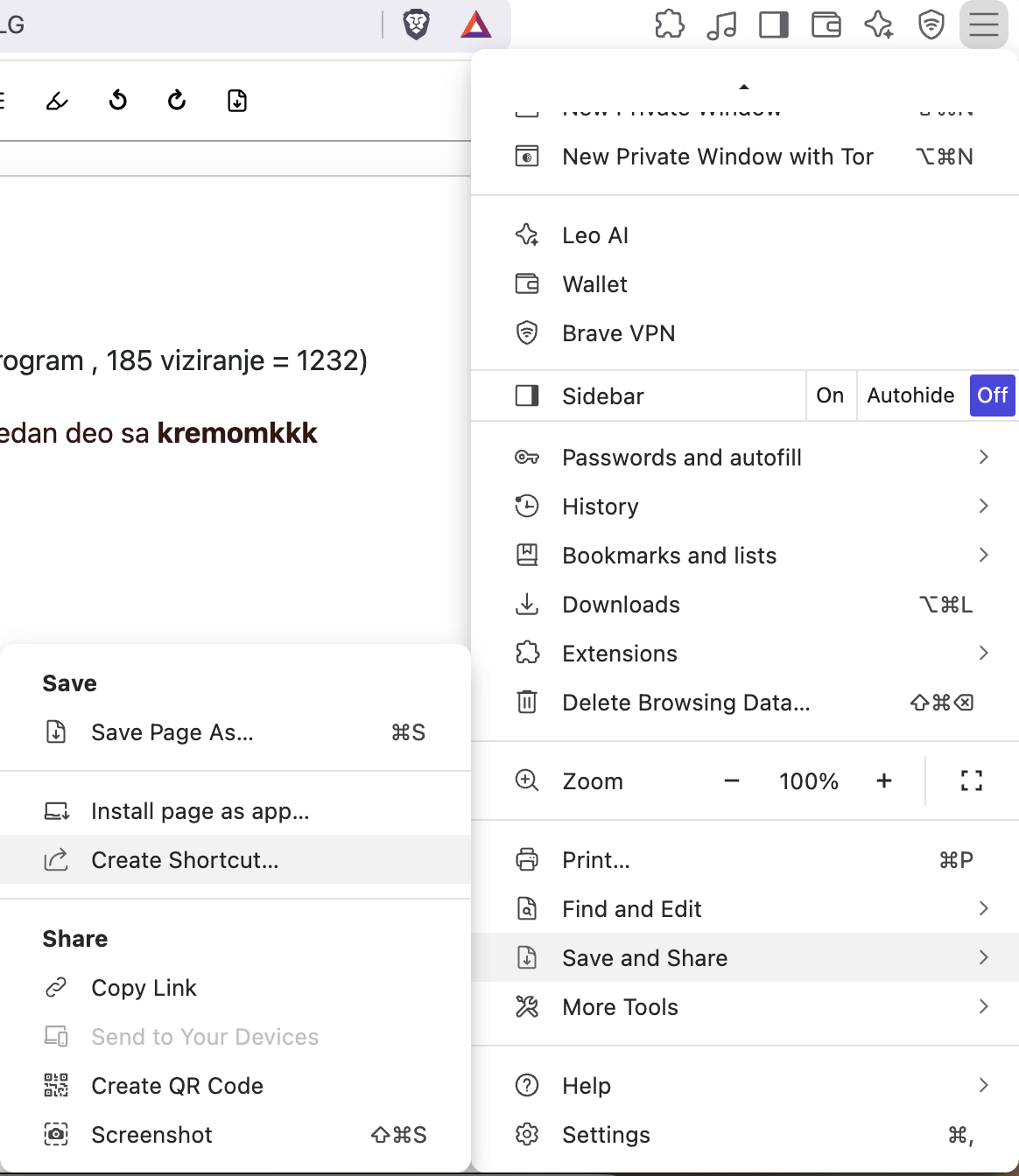
To access your note easily later, please create a shortcut on your desktop.
  1. Click the three dots (⋮) or the humburger icon in the top-right corner.
  2. Select Cast, save, and share (or Save and Share) → Create shortcut.
  3. Click Create.
How to add Notedux shortcut to desktop